
Test accounts
Test accounts let you simulate the activity of people involved in a purchase without using real data. They are intended for specific scenarios that require operating or logging in with another Mercado Pago account.
A test account is generated automatically when you create an application. You can also create additional accounts until you reach a limit of 15 accounts.
If a specific scenario requires test accounts, use one seller account and one buyer account from the same country. If you work with a marketplace model, you can also use an account that represents the integrator.
When using test accounts, you can complement these scenarios with test cards and the fictional balance available in the accounts. The way you access and manage them varies depending on the integrated product.
View test account details
The Credentials screen displays the application credentials and test account details for the selected environment.
To view these details, follow the steps below.
- Go to Integrations and select the application.
- Click Credentials in the side menu.
- Select the Test environment.
- In the Test account section, view the following details:
- User ID: numeric identifier of the test account.
- Test user: generated username used to log in.
- Password: generated password for the account.
- Verification code: 6-digit code to enter if additional verification is requested.
You can copy the details using the icons next to the fields that support this action.
Create and manage test accounts
To access the management screen, select Test accounts from the Integrations side menu. You can also access it from Home (Resources > Test accounts) or from the Credentials section (Test account > Manage test accounts).
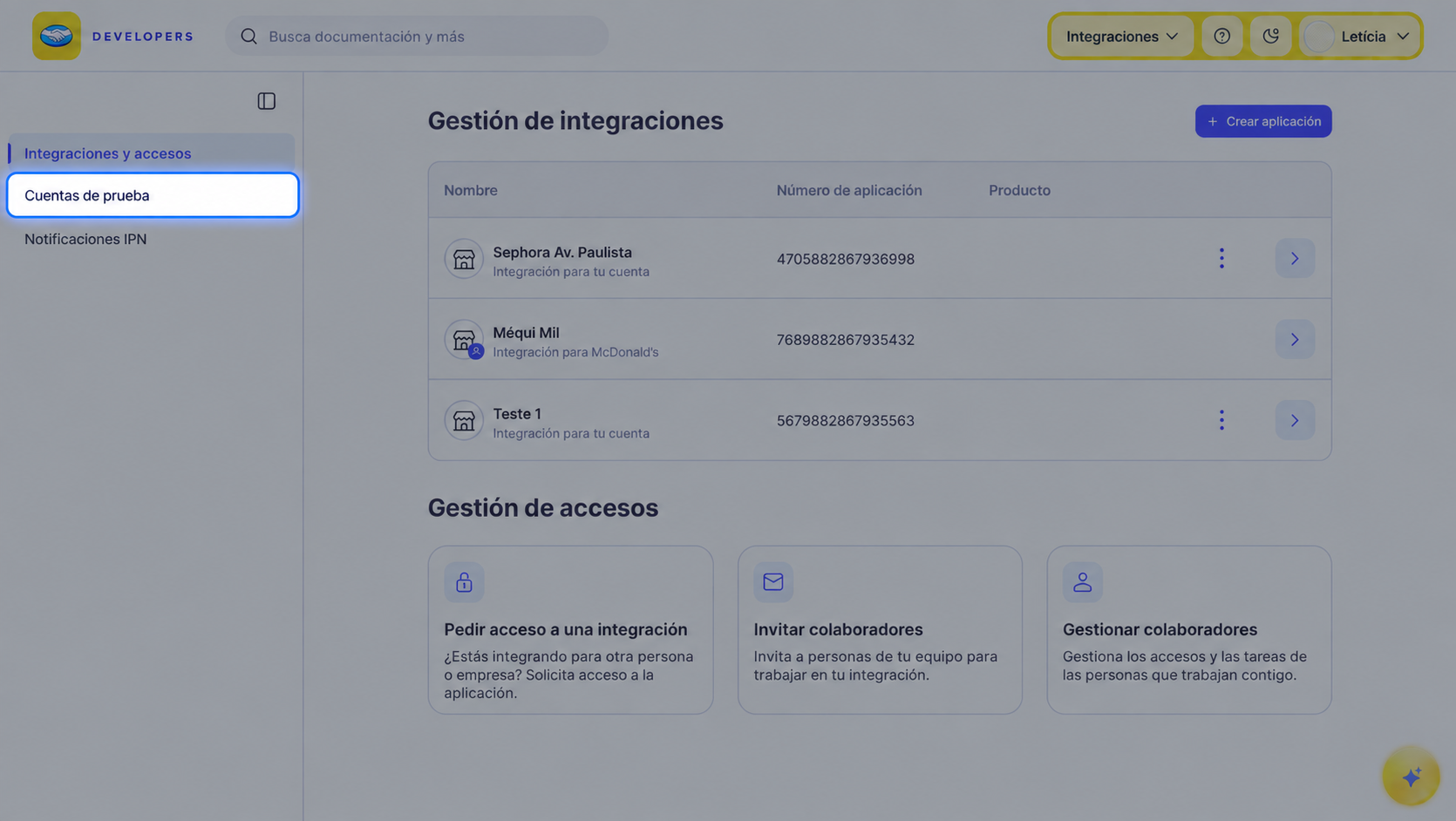
To create an account, follow the steps below.
-
Click Create test account.
-
Select the country. You cannot change it after creating the account.
-
Enter a label that lets you identify it.
-
Select the account type.
-
Enter the fictional balance you want to assign to it.
-
Accept the Privacy Statement and the Terms and Conditions.
-
Click Create test account.
Validate login
If logging in with a test account requires email authentication, enter the verification code available in the account details.
When logged in with a test account, you will not have access to administrative sections that are not required to run tests, such as the application's credentials or quality measurement.