
Dashboard
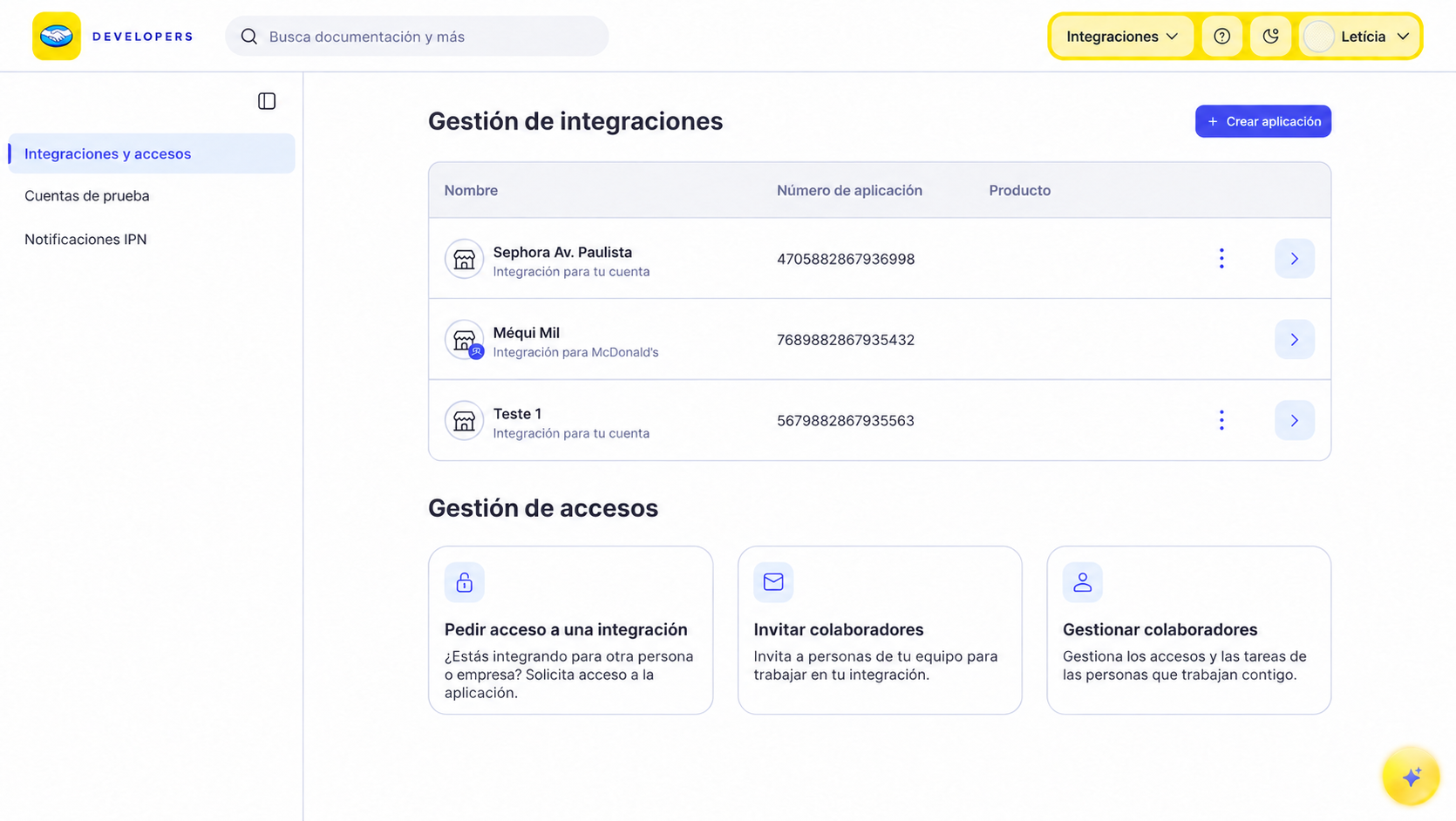
In Integrations, you will find the list of your applications.
Applications are different integrations contained within one or more stores. You can create an application for each solution you implement in order to keep everything organized and have better management control.
Each application has a set of credentials and the option to configure its own notifications. Each card represents a created application, displays its name and number, and includes a button that lets you open and manage it.
Create a new application
To create an application, you have three options available: with an AI agent from your code editor, with the Mercado Pago Developers Assistant, or manually from the integration Panel.
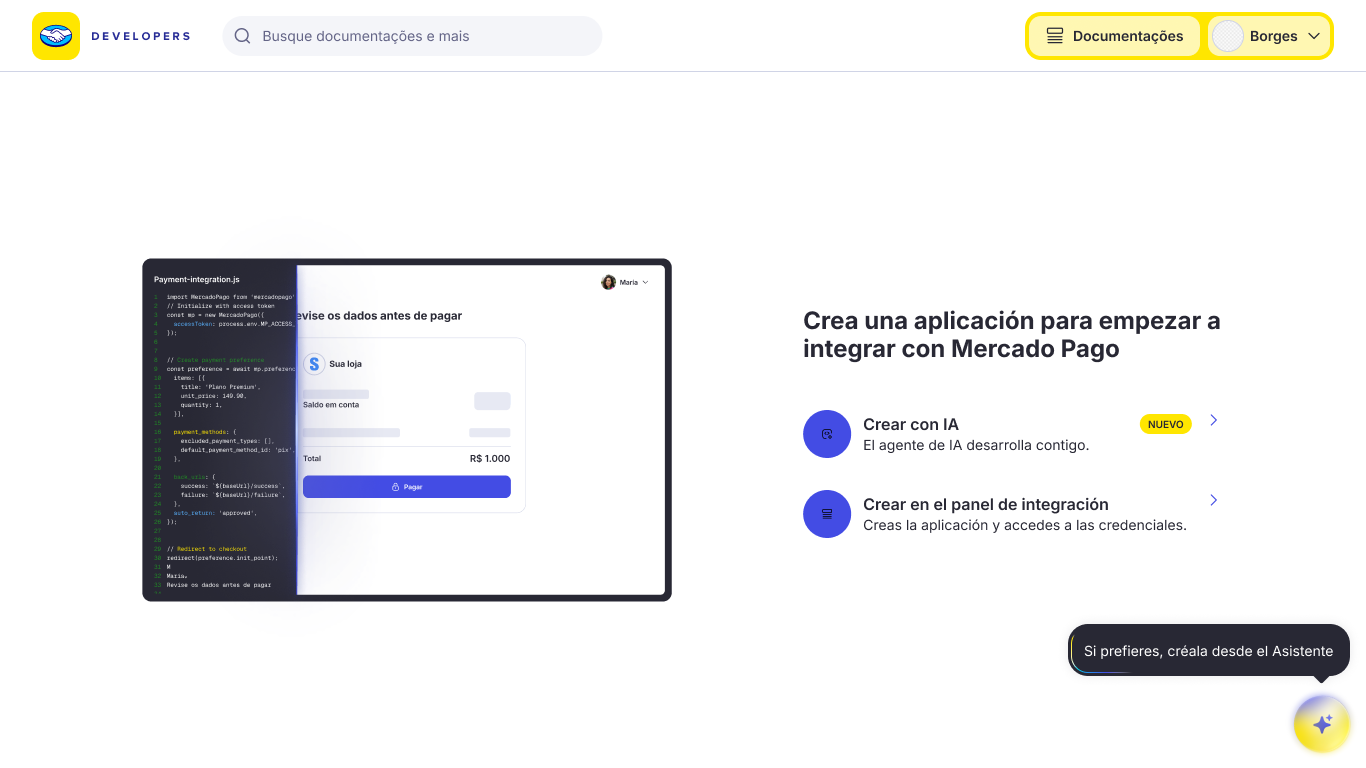
You can use our AI resources to create your application from your IDE or agent in 2 steps. The agent will take care of creating the application in the integration panel and guiding you through the entire configuration.

To do this, you have two options: installing the Mercado Pago Plugin, available for Claude Code and Codex, or configuring the Mercado Pago MCP Server, available for editors such as VS Code and Cursor. Follow the instructions for the option you choose.
Claude Code
Run the following command to install the Mercado Pago plugin for Claude Code.
bashclaude plugin install mercadopago@claude-plugins-official
Once installed, run the /mp-connect command to authorize the agent's access to your Mercado Pago account.
Codex
Run the following commands to install the Mercado Pago plugin for Codex.
bashcodex plugin marketplace add mercadopago/mercadopago-codex-marketplace
codex plugin add mercadopago@mercadopago-codex-marketplace
Once installed, run the /mp-connect command to authorize the agent's access to your Mercado Pago account.
VS Code
Add the following configuration to your mcp.json file.
json{
  "mcp": {
    "servers": {
      "mercadopago-mcp-server": {
        "type": "http",
        "url": "https://mcp.mercadopago.com/mcp"
      }
    }
  }
}
Cursor
Add the following configuration to your mcp.json file.
json{
  "mcpServers": {
    "mercadopago-mcp-server": {
      "url": "https://mcp.mercadopago.com/mcp"
    }
  }
}
Finally, ask the agent to create your application in Mercado Pago. If you'd like, you can copy and paste the following prompt.
plainI want to integrate with Mercado Pago. Recommend the ideal payment solution for my project, create the application, and guide me through the integration.
Whenever you create an application, a new card is automatically generated in Integrations with its name, integrated product, and identifier.
Select the card to open the application. The first screen you will see is Home, where you can switch between the Test and Production environments and access the tools available to manage the integration.
To learn about this experience, see Integration data.
Accessing credentials for an application you don't manage
You can request access to application credentials from other people and integrate solutions for accounts other than your own. To securely request access to credentials for an application you don't manage, follow the steps below:
- In the Developer dashboard, click on the Request access to credentials button.
- Click on the "Request credentials" button.
- Enter the email associated with the account for which the credentials are being requested.
- Check the "I'm not a robot" checkbox.
- Click on Request credentials.
Once access to the credentials is granted, you can use them to integrate solutions. After the integrations are completed, remove the access permissions for the shared credentials and ensure the security of the data.