
AI resources
Integrate cashouts with QR Code into your solution
Offer your customers the option to withdraw cash using QR codes through a unified API.
Static and dynamic codes
Instant cashouts
Real-time notifications
Automatic reconciliation

How it works
How to integrate
By integrating QR Code, your customers can withdraw cash instantly by scanning a QR code linked to your Mercado Pago account. The system can generate dynamic QR codes for each transaction, static codes for fixed points of sale, or even combine both options as needed.
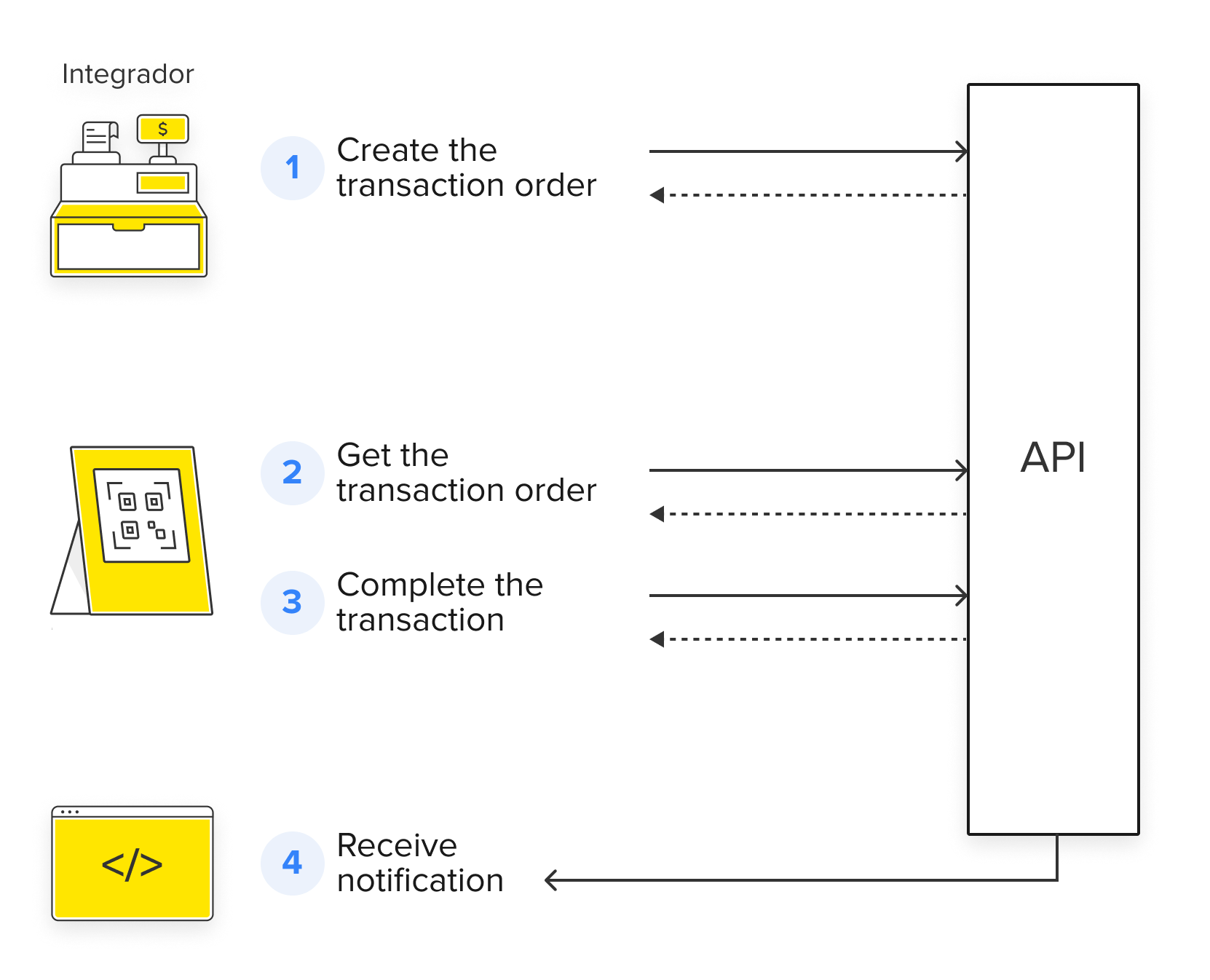
- Create the order from your system using our unified API.
- In your system, you need to generate and display a QR code on the point of sale screen, which can be dynamic (different for each transaction) or static (the same for all transactions).
- The buyer scans the QR and withdraws money using the selected payment method.
- The integrated system receives the notification about the order status.
What it offers
Integrating Mercado Pago's API into your project completely transforms the payment experience, unlike models without integration, where each transaction must be processed and reconciled manually.
- Static model: fixed QR code associated with a cash register for multiple transactions.
- Dynamic model: unique QR code generated specifically for each transaction.
- Hybrid model: intelligent combination of static and dynamic model functionalities. The withdrawal amount is reflected in the static QR and, at the same time, a dynamic QR exclusive for each transaction is generated.
- Manage cashouts directly from your system.
- Receive automatic notifications via webhooks in real-time.
- Automatic reconciliation of operations with Mercado Pago.
- Connect your project through a single API to manage orders, cashouts, and notifications.
- Integrate different payment solutions without needing to work with multiple separate APIs.
- Protect data involved in transactions with HTTPS protocols and OAuth authentications.
- The API automatically manages the transaction lifecycle, eliminating the need for manual intervention, reducing errors, and increasing operational efficiency.
Different QR Code models
Automatic management
Unified API
Efficiency and security
QR Code modelsCompare the available QR code integration models and choose the one that best suits your business. Check the rates.
Integration difficulty
Integration difficulty
1/5Integration difficulty
2/5Integration difficulty
2/5QR at the cash register (reusable)
QR at the cash register (reusable)
QR at the cash register (reusable)
-
QR at the cash register (reusable)
Single-use QR
Single-use QR
-
Single-use QR
Single-use QR
Multiple QR in the same POS
Multiple QR in the same POS
-
Multiple QR in the same POS
Multiple QR in the same POS
Transaction completion screen
Transaction completion screen
Transaction completion screen
Transaction completion screen
Refunds
Refunds
Refunds
Refunds
How to integrate
Learn the necessary steps to integrate QR Code.
Prerequisites
- Mercado Pago app
- Mercado Pago accountYou need to create a user in Mercado Pago (or Mercado Libre) to have a seller account, whether in an own integration or for third parties.
  flowchart TD
                A[Create an application in Your integrations] --> B[Configure your store and cash register]
                B --> C[Integrate transaction processing]
                C --> D[Configure notifications]
                D --> E[Test the integration]
                E --> F[Go to production]