
Create application
Applications are registered entities within Mercado Pago that act as a unique identifier for managing the authentication and authorization of your integrations. They represent the link between your development and Mercado Pago and constitute the first stage in carrying out the integration.
To create an application, you have three options available: with an AI agent from your code editor, with the Mercado Pago Developers Assistant, or manually from the integration Panel.
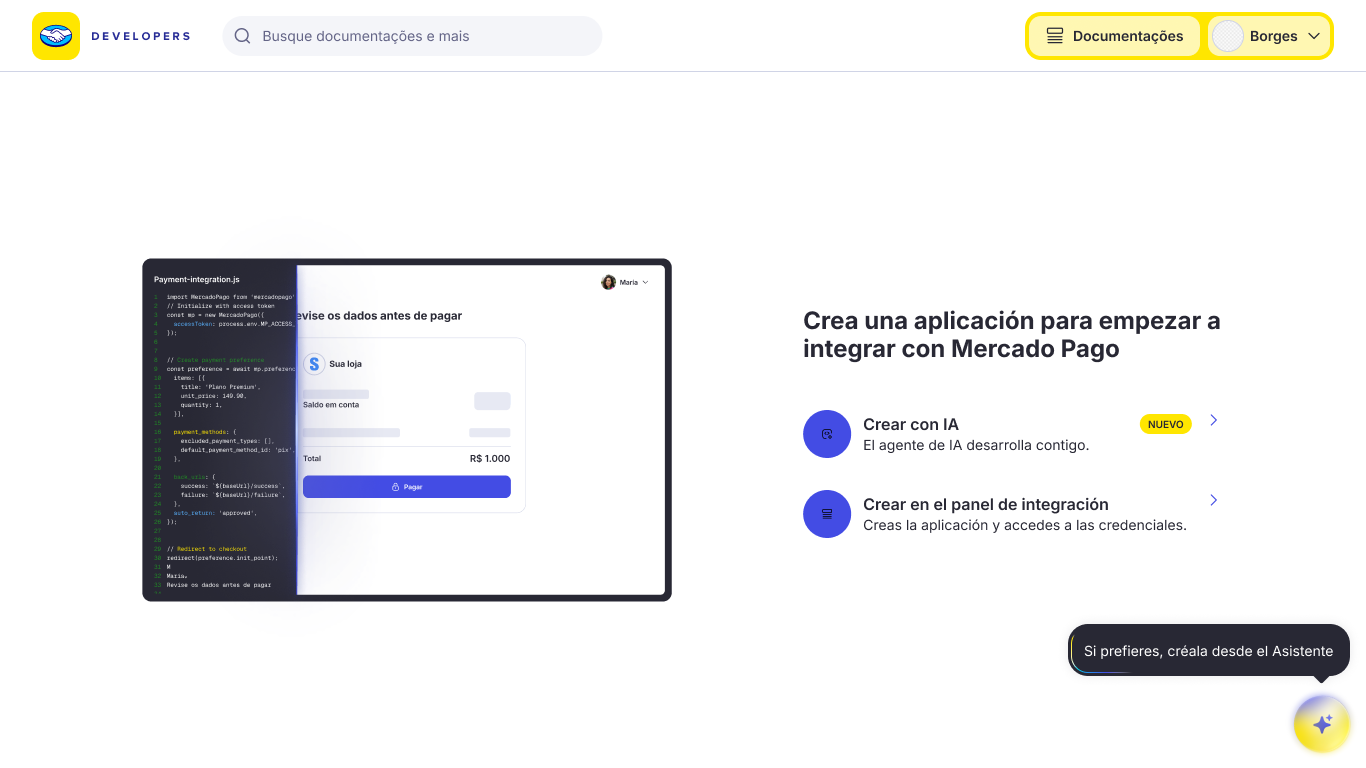
You can use our AI resources to create your application from your IDE or agent in 2 steps. The agent will take care of creating the application in the integration panel and guiding you through the entire configuration.

To do this, you have two options: installing the Mercado Pago Plugin, available for Claude Code and Codex, or configuring the Mercado Pago MCP Server, available for editors such as VS Code and Cursor. Follow the instructions for the option you choose.
Claude Code
Run the following command to install the Mercado Pago plugin for Claude Code.
bashclaude plugin install mercadopago@claude-plugins-official
Once installed, run the /mp-connect command to authorize the agent's access to your Mercado Pago account.
Codex
Run the following commands to install the Mercado Pago plugin for Codex.
bashcodex plugin marketplace add mercadopago/mercadopago-codex-marketplace
codex plugin add mercadopago@mercadopago-codex-marketplace
Once installed, run the /mp-connect command to authorize the agent's access to your Mercado Pago account.
VS Code
Add the following configuration to your mcp.json file.
json{
  "mcp": {
    "servers": {
      "mercadopago-mcp-server": {
        "type": "http",
        "url": "https://mcp.mercadopago.com/mcp"
      }
    }
  }
}
Cursor
Add the following configuration to your mcp.json file.
json{
  "mcpServers": {
    "mercadopago-mcp-server": {
      "url": "https://mcp.mercadopago.com/mcp"
    }
  }
}
Finally, ask the agent to create your application in Mercado Pago. If you'd like, you can copy and paste the following prompt.
plainI want to integrate with Mercado Pago. Recommend the ideal payment solution for my project, create the application, and guide me through the integration.
In Your integrations you can consult the list of all your created applications and access the Integration data of each one of them.
Access test credentials
After creating your application, the test credentialsAccess keys linked to an application and used to test the integration in a secure environment. You can find them in the application's Credentials section, within the test environment. They cannot process real payments.Credentials will be automatically generated. You should use them to perform all the necessary configurations and validations in a secure test environment. If, instead, you are using an existing application, it will be necessary to activate the test credentials.
When accessing these credentials, the following keys will be displayed: Public KeyPublic key linked to an application, used in the frontend to initialize and test the integration. You can find it in the application's Credentials section, within the test environment. It cannot process real payments. and the test Access TokenPrivate key linked to an application, used in the backend to authenticate operations in the test environment. You can find it in the application's Credentials section, within the test environment. It cannot process real payments and must never be exposed in the frontend.. The test Access Token starts with the prefix APP_USR, just like your production Access Token.

If you are using an existing application, it will be necessary to activate the test credentials. For more information, access the Credentials documentation.
To develop your QR Code integration, use your test Access TokenPrivate key linked to an application, used in the backend to authenticate operations in the test environment. You can find it in the application's Credentials section, within the test environment. It cannot process real payments, must never be exposed in the frontend, and starts with the `APP_USR` prefix..
Once you have the necessary credentials, continue to create the store and cash register.